Connectivity
Smartphone Integration
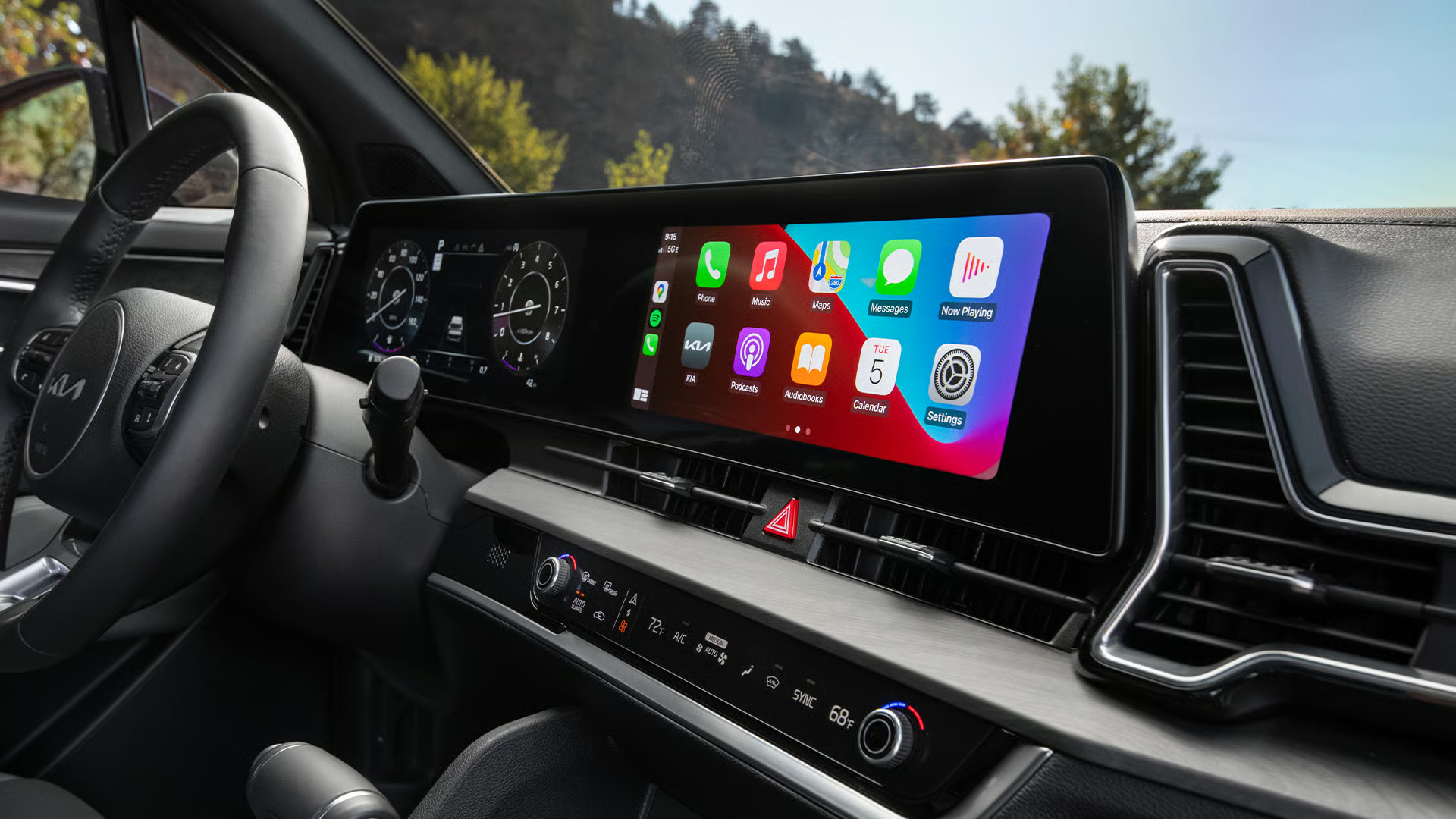
Use Apple CarPlay® and Android Auto™ to access key apps and features through your Kia’s display.
Android Auto™
Connect your Android smartphone to your Kia to access supported apps such as Google Maps, calls, messages, and voice assistance through the infotainment display.
Apple CarPlay®
Connect your iPhone to your Kia to use Apple Maps, Siri, calls, messages, and music directly on the infotainment display.
Key Features
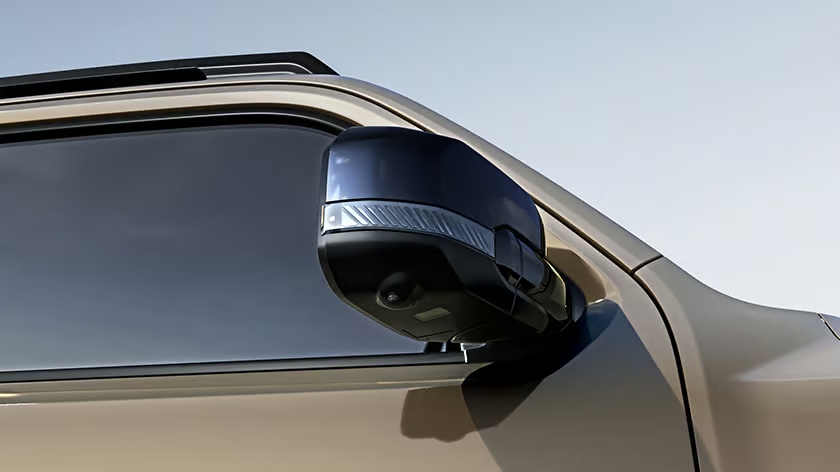
Navigation
Use Apple CarPlay® or Android Auto™ to access navigation apps, traffic updates, and route guidance on your Kia’s display.
.avif)
Communication
Make hands-free calls and send or receive messages using voice commands through Apple CarPlay® or Android Auto™.
Entertainment
Stream music and audio content from supported apps using Apple CarPlay® or Android Auto™.
How to Connect Apple CarPlay® or Android Auto™
Follow these easy steps to connect your iPhone or Android phone to your Kia’s infotainment system.
Step 1. App installation on your smartphone
- For Android phones, download and install the Android Auto™ app from the Google Play Store.
- For iPhones, make sure to enable Apple CarPlay® and Siri. If you don't see the option for Apple CarPlay® or Siri, update your iPhone to the latest version of iOS.
Step 2. Setting in your Kia
- On the Advanced menu screen, tap Settings > Connections > Menu > Phone projection settings > Android Auto™ or Apple CarPlay®.
- Then, select the checkbox to enable Android Auto™ or Apple CarPlay®, depending on your phone model.
Step 3. Connection
Connect your smartphone to your Kia's USB port using an appropriate USB cable.
Please note that 2022-2024 Kia EV6 models do not support wireless versions of both Android Auto™and Apple CarPlay®
Please note that 2022-2024 Kia EV6 models do not support wireless versions of both Android Auto™and Apple CarPlay®
Step 4. Consent to use
When your smartphone is locked, first unlock it and then agree to use Android Auto™ or Apple CarPlay®.
Kia Dealer Network
Locate an authorized Kia dealer near you and get expert support for sales, service, and ownership.

Schedule a Test Drive
Experience the performance and comfort of a Kia firsthand.


Find your Kia
Step into the Kia experience today. Explore our latest models and connect with our expert team to find the Kia that fits your lifestyle and driving needs.